

How to compare a QR code cat tag with GPS tracking
A QR tag can help a lost cat get home, but it won’t show you where the cat is. A QR code for a cat collar gives a finder a way to scan the tag and contact you using the information you’ve added to the pet’s profile. It’s useful for sharing details, while GPS tracking serves a different purpose: locating a pet through tracking technology.
It makes sense to want a simple way for someone to act quickly if your cat wanders off. A QR tag can connect the finder with a digital pet card, where you can keep useful details together and update them when they change.
This guide explains how QR pet tags work, how they compare with digital pet cards and GPS, and how to create a pet ID QR code. You’ll also learn what information to include, how to make the code easy to scan, and how to choose an option that suits your cat and your needs.
Key Takeaways
- Use a scannable tag to help a finder reach you, and keep the contact details on the pet profile current.
- Think of the physical tag as the route to your cat’s digital pet card, where helpful care and identification details can live.
- Choose between a QR tag and GPS based on whether you need a way for a finder to contact you or a tool designed to locate your cat.
- Make the code easy to scan: a printed QR code should be at least 0.8 × 0.8 inches.
- Review the profile’s privacy settings and decide which information a finder should be able to see.
Are QR code pet tags useful for cats?
- Choose a tag that gives a finder a clear next step. A QR code for a cat collar can open a pet profile with contact and emergency details. A finder can scan the code and use the information you’ve chosen to share. For example, include your preferred phone number and an emergency contact. A QR tag is useful when someone finds your cat and wants to reach you, rather than simply identify the cat by name.
- Make contacting you simple. Add a reliable contact method and label it clearly, such as “Call my owner” or “Text if found.” Include an emergency contact who knows your cat, too. A finder can use the details shown on the profile to call or text. Keep the message direct: “Milo is shy. Please contact me before approaching.” Clear instructions help someone act without guessing what your cat needs.
- Share useful details, not your whole life. A pet profile can include a cat’s name, photos, medical information, behavior notes, and emergency contacts. Choose what a finder needs to help, then leave out details that aren’t relevant. Avoid displaying your home address or daily schedule. Pet owners control the information visible on their profiles and can adjust privacy settings through their accounts. Review the public view before attaching the tag.
- Use a QR tag alongside microchip identification. QR code collar tags aren’t a substitute for microchipping a cat. The tag gives a finder a visible code to scan, while a microchip is a separate form of identification that requires an appropriate scanner. Keep both routes useful by updating the QR profile when your phone number or emergency contact changes. If your cat loses its collar, the chip can still provide another way to connect identification with you.
- Check fit and condition regularly. QR code cat collar tags aren’t automatically durable, waterproof, or suitable for every cat. Those qualities depend on the tag’s material, construction, attachment, and fit. Check that the tag stays attached, the code remains readable, and the collar doesn’t rub or catch. Follow the tag and collar care instructions, especially after outdoor wear. A clear, readable code makes it easier for a finder to access your contact details.
QR pet tags and digital pet cards
- Separate the tag from the information it opens. A QR pet tag is the physical item attached to a collar. The digital pet card is the online profile connected to its code. For example, a finder scans Luna’s tag and sees the profile you prepared. This makes the tag a quick route to details, rather than a tiny space for every instruction. Think of the code as the doorway and the profile as the room behind it.
- Build the digital card around what a finder needs. Add your cat’s name, a clear photo, contact details, and emergency contacts. Then consider useful care details, such as medical information or behavior notes. For example, “Luna hides when frightened” helps explain why a finder should approach calmly. You can also include a veterinarian’s details if they would help in your cat’s situation. Keep each entry short and easy to understand on a phone screen.
- Use the tag to make the profile easier to reach. A printed phone number can be hard to fit on a small tag, while a QR code can lead to a fuller digital card. This lets a finder see more than a name and number, including a photo to help identify your cat. The code also avoids relying on someone to copy small text correctly. For instance, a neighbor scanning the tag can view your preferred contact method and your cat’s care notes together.
- Update the profile when details change. If you change phone numbers, emergency contacts, or your cat’s care information, revise the online card. The physical QR tag can keep pointing to the profile, so you don’t need to replace it just because a detail changed. For example, after adding a new emergency contact, make sure the profile displays that person’s current details. Review the card after changes to your household or your cat’s needs.
- Choose the combination that fits your cat. A digital card can hold more context than a small engraved tag, while the QR tag gives a finder a physical way to reach it. Neither does the same job as GPS tracking, which is intended to help locate a pet. If your priority is helping someone who finds your cat contact you, a QR tag and a thoughtfully completed card work together. Keep the information relevant, readable, and current.
Creating a pet ID QR code
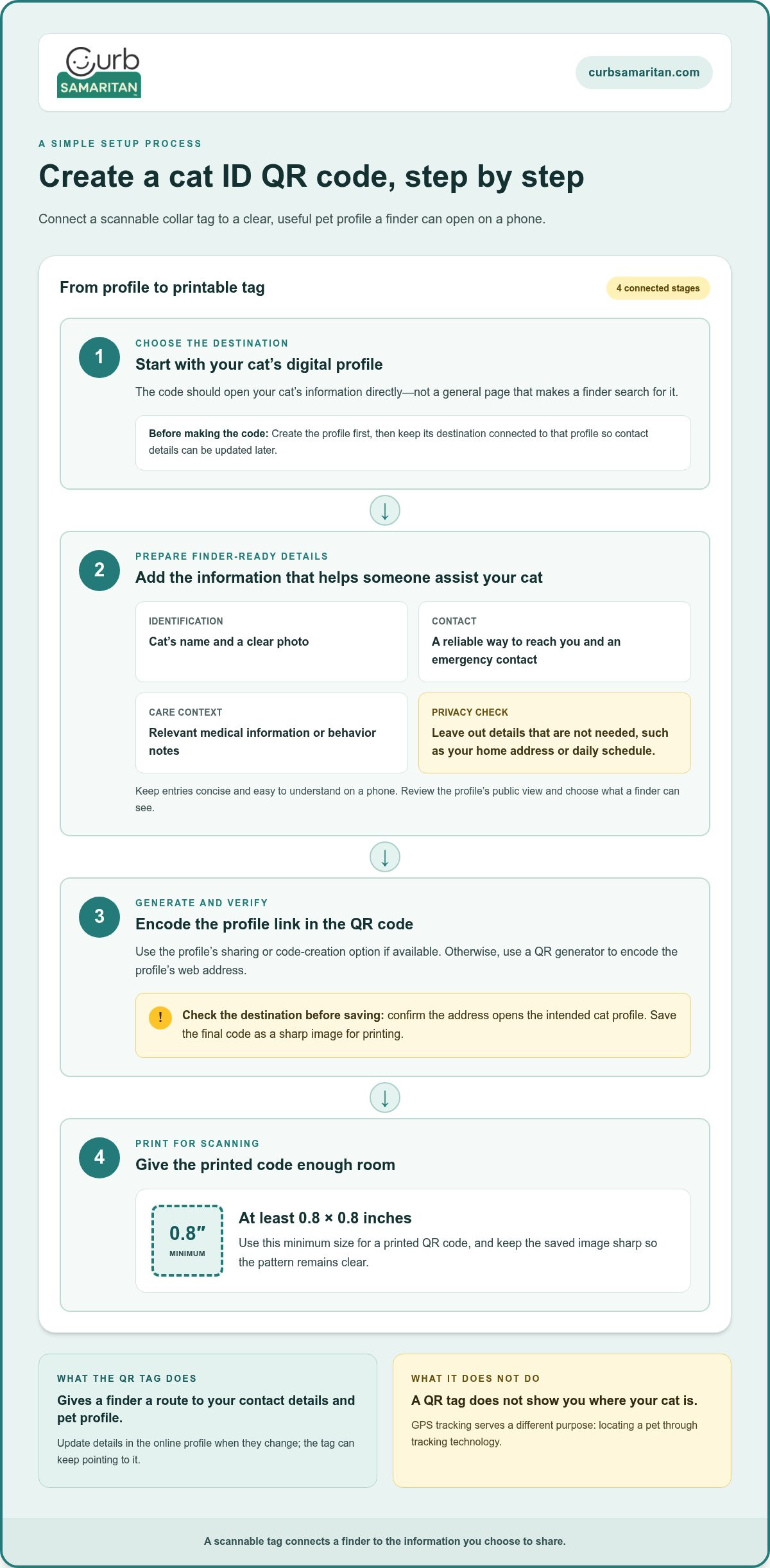
- Choose what the code should open. Start with a digital pet profile that a finder can read on a phone. The QR code should take them directly to your cat’s information, not to a general page that requires extra searching. For example, create a profile for Pepper before generating the code. Keep the destination connected to the profile, so you can update contact details later without replacing the tag.
- Prepare the profile before making the code. Add your cat’s name, a clear photo, and a way to contact you. Include an emergency contact and relevant medical or behavior notes. For example, “Pepper is frightened by loud noises” gives a finder useful context. Keep each detail concise and readable on a phone. Leave out personal information that doesn’t help someone identify or safely assist your cat.
- Generate the QR code from the profile link. Use the profile’s sharing or code-creation option if available. Otherwise, use a QR generator to encode the profile’s web address. Check that the address opens the intended cat profile before saving the code. A code linked to the wrong page can confuse a finder, even if the printed pattern looks clear. Save the final code as a sharp image for printing.
- Set a practical print size. Print the QR code at least 0.8 × 0.8 inches to support scanning. The ideal size can vary with the design and tag material. Keep the code’s pattern clear and avoid shrinking it to fit a space where its details blur together. If you’re printing a tag or label, check the size on the finished item, not only on your screen.
- Test the printed code before attaching it. Scan the finished print with a phone camera and confirm it opens your cat’s profile. Check that the page displays the right name, photo, and contact method. Try scanning it again after printing, since a screen preview doesn’t test the physical copy. If scanning fails, review the print size and image clarity, then make a fresh print.
- Keep the profile and code connected over time. Update the profile when your phone number, emergency contact, or cat’s care details change. Since the QR code leads to the profile, you can revise those details without replacing the physical tag. After each update, scan the code again and make sure a finder sees the current information. A quick review helps prevent old contact details from lingering online.
How do I set up and update a cat’s QR code profile?
- Open the account linked to your cat’s profile. Create or access the account that controls the information shown after a finder scans the code. Use a clear profile name, such as “Milo’s pet profile,” so you can identify it later. If you have profiles for multiple cats, give each one a distinct name. This helps you edit the right record when a phone number or care detail changes.
- Enter identification and contact details first. Add your cat’s name, your preferred contact method, and emergency contacts. Use details a finder can act on, such as a phone number you check regularly. Label each contact clearly, for example, “Owner” or “Emergency contact.” If your cat has more than one caregiver, list the person most likely to respond first.
- Add details that help someone recognize and care for your cat. Upload a recent photo that shows distinctive markings. Include medical information, behavior notes, and veterinarian or provider details when useful. For example, note that a cat needs medication or hides when frightened. Keep each note brief and plain. A finder should be able to understand the important details without sorting through a long history.
- Choose what appears to people who scan the code. Review the information on your cat’s profile and its privacy settings through your account. Check each field before sharing it. Show information that helps identify or assist your cat, but avoid unnecessary personal details, such as your home routine. For example, an emergency contact may be useful, while a daily schedule usually isn’t.
- Review the profile from a finder’s point of view. Read the displayed information in order, as someone unfamiliar with your cat would. Check that the photo matches your cat and that contact instructions are easy to follow. Ask yourself whether a neighbor could tell whom to contact first. Correct confusing labels, outdated details, and notes that don’t help identify or safely assist your cat.
- Update the profile whenever something changes. Replace old phone numbers, emergency contacts, photos, and pet information with current details. For example, if your cat’s care needs change, revise the medical note promptly. The profile can be updated without replacing the physical tag. After saving an edit, review the visible profile again so the information presented to a finder reflects your latest changes.
Do QR code pet tags work without an app or internet connection?
- Check what the code contains. A QR code may contain plain text or point to an online profile. If it points to a profile, a phone needs an internet connection to load that page. For example, a finder can scan the code while offline, but won’t see Luna’s online contact details until the page connects. Scanning and accessing the profile are separate steps.
- Use a phone camera before downloading anything. Many phones can scan QR codes through their built-in camera. The finder aims the camera at the code and taps the prompt that appears. A separate QR-scanning app may not be necessary. If the camera doesn’t recognize the code, the finder can try another scanning method once internet access is available.
- Understand what offline access can and can’t do. Without internet, a code linked to a website can’t retrieve its current profile. That means the finder may not see updated contact details or care notes. If the code itself displays only a web address, it won’t provide the information on that page offline. Keep a simple backup contact method on the tag when space allows.
- Test the full process in different conditions. Scan the tag using a phone camera, then open the profile with a working connection. Check whether it loads in a browser without requesting a dedicated app. Next, turn off the connection and scan again. This shows which information comes directly from the code and which details depend on the online profile.
- Give a finder a fallback route. Add a readable phone number or short instruction to the physical tag when possible. For example, “Call my owner” explains the next step if a profile won’t load. A QR profile can carry more details, but a printed contact gives someone another option when their phone has no signal or can’t access the page.
- Choose a connection method that suits your neighborhood. A cat’s QR profile helps a finder reach the pet owner through its linked information. QR-enabled community stickers can also help people send alerts about other found or local items. If neighborhood communication is useful beyond pet identification, explore the Neighborhood Connect Sticker Bundle as a separate way to connect people.
Curb Samaritan: Driver Sticker
Curb Samaritan offers People & Pet tags to help someone reach you about your cat. A passerby can scan the QR code and send you a secure, anonymous text alert without needing a mobile app or seeing your personal information. This can help when you want a finder to contact you, rather than track your cat’s location.
The Driver Sticker is designed for vehicle-related alerts, while People & Pet tags suit pet identification. Choose the option that matches the situation you want to address. A QR tag supports communication between a finder and owner; it doesn’t provide GPS tracking.
For a simple way to help people get in touch about your pet, visit Curb Samaritan.
Make your cat’s identification part of your routine
Choose an identification setup that fits your cat’s habits and your household’s ability to respond. Then make the plan familiar to everyone who cares for your cat. A shared approach can help prevent confusion if someone receives a message about a wandering pet. Decide who will respond first and how other caregivers can help. Keep the plan practical, so it’s easy to follow during a stressful moment.
A QR code for a cat collar can be one part of that plan, alongside other ways your community can reach you. Curb Samaritan offers a Driver Sticker, Resident Sticker, and Found Sticker for different kinds of alerts. Each serves a distinct purpose, so choose based on the message you want someone to send.
If you’re ready to explore a simple way for people to contact you, contact Curb Samaritan. A small step today can make it easier for a kind neighbor to help tomorrow.
Frequently Asked Questions
Can I update the pet card later?
Yes, you can edit the profile details after setting it up. Update the contact information, emergency contact, or care notes whenever they change. For example, if your cat begins taking medication, add a brief note so a finder sees current guidance. After editing, view the profile as a stranger would. That final review helps catch outdated details or unclear instructions before they matter.
Can QR pet tags show more than a phone number?
Yes. A linked pet page can show information beyond a phone number, including your cat’s name, photo, emergency contacts, medical information, and behavior notes. Choose details that help someone recognize or assist your cat. For example, a photo can help distinguish two similar-looking cats, while a short note can explain that yours is timid. Keep private or irrelevant details off the public-facing page.
Does a Pet ID QR code track my pet’s live location?
No. A Pet ID QR code doesn’t reveal your cat’s live location. It gives a person who has found your cat a way to access identification and contact details. GPS tracking is different: it uses tracking equipment to help locate an animal. If your cat goes missing, a QR tag can help a finder reach you, but it won’t show where your cat has traveled.
How can users contact the pet owner using a Pet ID tag QR code?
A finder scans the tag’s code with a mobile device and follows the contact instructions on the page it opens. Depending on the profile, they may use a displayed phone number or another contact method. Make the preferred action easy to spot, such as “Please call my owner.” A clear instruction reduces uncertainty for someone who has never met your cat.
What Is a Pet ID Tag QR Code?
A Pet ID tag QR code is a scannable pattern on a tag that connects a finder with information about an animal. It may open an online profile with identification and contact details. For example, a person who finds a cat can scan the tag to see its name and learn how to reach its owner. The code itself doesn’t locate or track the animal.
What are QR pet tags?
QR pet tags are identification tags with a scannable code for a pet’s profile or contact information. They give someone who finds a pet another way to connect with its owner. A tag may be attached to a collar, making it visible during a chance encounter. Its usefulness depends on a readable code, an accessible profile, and current information that gives the finder a clear next step.
What information can I include on a Pet ID display page?
A Pet ID display page can include a pet’s name, photos, contact details, emergency contacts, medical information, behavior notes, and veterinarian or provider details. For example, a photo and a distinctive marking can help confirm the animal’s identity. Add only information that serves a finder or caregiver. Review privacy settings and leave out details, such as your household routine, that don’t help someone assist your pet.
What information should a QR code cat collar tag include?
Keep the physical tag focused on details a finder can use quickly. Include your cat’s name and a short prompt to scan or contact you, if the tag’s design allows. Put fuller information, such as emergency contacts or care notes, on the linked profile. For instance, “Scan for owner details” tells a finder what to do without crowding the tag with text.