

No-app digital dog tags for dogs: setup and privacy
A dead battery won’t stop a passive digital dog tag with no app: QR and NFC tags don’t need one. A finder can view a pet’s information without downloading an app. Damage to the tag or its code can still prevent a successful scan.
It’s reasonable to want an ID that’s easy for a stranger to use and doesn’t depend on another app or a charged battery. But “no app” doesn’t answer every practical question. Setup, upkeep, privacy, and what happens if the tag is damaged all matter when choosing how to help your dog get home.
This guide explains how no-app tags work, what to consider when setting one up, and what maintenance involves. You’ll also see how they compare with engraved ID tags, trackers, and microchips, so you can choose an option that suits your dog and use it alongside other forms of identification when appropriate.
Key Takeaways
- Passive QR and NFC tags don’t rely on a battery, but a damaged tag or code can interfere with scanning.
- Use a digital tag alongside a microchip when you want both a visible way to contact you and identification that a vet or shelter can scan.
- Set up the tag with clear, useful pet details and review the profile when your contact information changes.
- Limit the personal details you share in a public-facing profile, especially information about your home.
- Explore Curb Samaritan’s People & Pet tags if you want a way for finders to send you a secure, anonymous text alert.
Battery and subscription requirements
In the United States, a no-app dog tag’s cost depends on its purchase price and any platform fees. Passive QR and NFC options need no battery, so there’s no charging or battery replacement.
Battery-Free Tag Options
A passive tag stays silent until someone uses it. A QR code opens through a phone camera, while an NFC tag responds when a compatible phone is held near it. Neither needs a battery to share the pet’s profile.
That removes charging from your routine, but the physical tag still needs attention. Check that the QR code remains readable and the tag stays attached to your dog’s collar. A scratched code, dirt covering its pattern, or a missing tag can stop a finder from opening the profile.
For example, scan the QR code yourself after attaching the tag. Then try the NFC feature if the tag supports it. These simple tests can reveal a damaged code or unclear profile before your dog is out of reach.
Battery-free doesn’t mean maintenance-free. Keep the tag clean, inspect its attachment, and make sure the linked information stays useful. Unlike an electronic tracker that needs power, a passive QR or NFC tag relies on a finder’s phone and a readable tag.
Subscription and Cost Considerations
The total cost depends on more than the physical tag. A provider may charge for the tag, profile hosting, or ongoing platform access. Some models may require a recurring subscription; others include access with the purchase. There’s no single price for all no-app digital dog tags.
Separate the one-time purchase from any recurring charge before deciding. Check whether the profile remains available if a subscription ends, whether contact details can be updated at no extra cost, and whether continued access incurs fees. These terms shape the long-term cost more than the absence of a battery.
For a practical comparison, write down the tag’s purchase cost and any recurring platform charge. Then consider how long you expect to use the tag and whether profile changes cost extra. This makes a one-time payment easier to compare with an ongoing plan, without confusing app access with tag power.
A phone app is not the same as a subscription. A finder can access a profile without installing an app, while the owner’s access may follow the platform’s payment terms. Read those terms before activation, and keep profile details current so the tag remains useful when scanned.
Smart tags compared with engraved tags, AirTags, trackers, and microchips
An app-free QR tag helps a finder contact you, but it serves a different role from a tracker or microchip. It can help when its code is readable, its profile is current, and a finder scans it.
QR Tags and Microchips
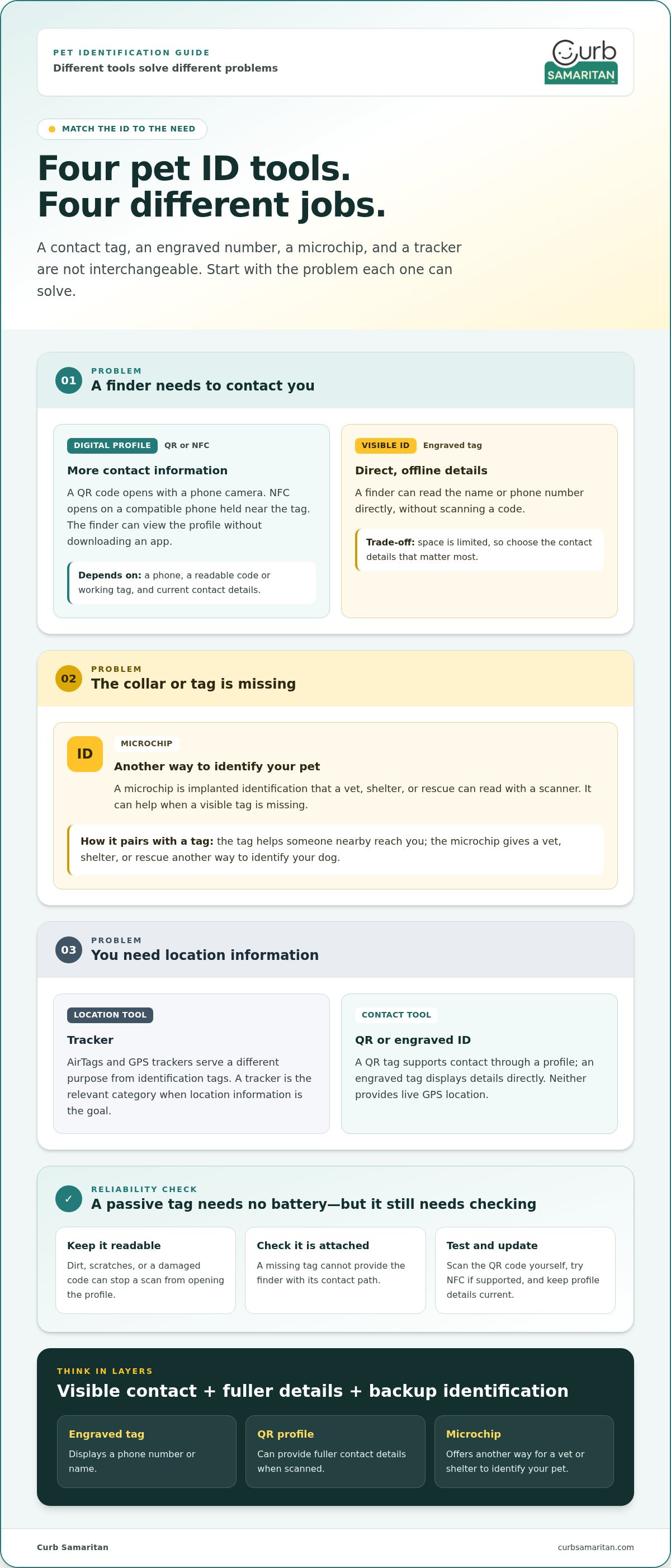
A QR tag offers visible access to contact details through a phone camera. A microchip is implanted identification that a vet, shelter, or rescue can read with a scanner. The two can work together: the tag helps someone nearby reach you, while the microchip offers another way to identify your dog.
For example, someone who finds your dog outdoors may scan the tag. If the tag is missing, a shelter can check for a microchip. Neither replaces the other, so consider what each method lets a finder do.
Reliability When a Pet Is Lost
App-free QR tags can be useful when a finder has a phone and can scan the code. Their usefulness depends on practical details: the tag is attached, the code is legible, and the profile has working contact information.
Before relying on one, scan it yourself and confirm the profile opens. Then check that your phone number or preferred contact method is current. A QR tag identifies your pet and supports contact, but it doesn’t show live GPS location.
An engraved tag offers a direct, offline option. Someone can read its name or phone number without scanning a code. Space is limited, so choose the contact details that matter most. A QR profile can hold more information, but the finder needs a phone to scan the tag.
AirTags and GPS trackers serve a different purpose from identification tags. A smart dog tag helps a finder reach the owner; it doesn’t provide live GPS tracking. A tracker is the relevant category when location information is the goal. Neither tool replaces a visible ID method that tells a finder how to contact you.
For dogs and cats, QR tags can provide the same basic contact path: a finder scans the code and views the pet’s profile. Choose a tag that fits securely on the animal’s collar, and make sure its code remains visible. A cat’s smaller collar may call for a lighter, less bulky tag than a dog’s.
Think in layers: an engraved tag can display a phone number, a QR tag can open fuller contact details, and a microchip gives a vet or shelter another way to identify your pet. Choose based on whether your priority is immediate contact, more profile information, or identification when a collar is missing.
Creating and activating a digital pet tag
Set up the pet’s profile before attaching the tag, then test the scan yourself. A finder needs a clear path from the physical code to useful contact information.
- Choose the tag format. A QR tag uses a printed code that a phone camera can scan. An NFC tag opens its linked information when a compatible phone is held close. Some tags combine both methods, so identify which features your tag supports before setup.
- Open the provider’s setup instructions. Follow the steps supplied with the tag or shown on its packaging. The process may use a web page or account. Keep the tag nearby, since setup may ask you to scan its code or enter a code printed on it.
- Create the pet profile. Add the details that help someone identify your dog and reach you. For example, include the dog’s name and a phone number you answer. If the profile allows a short note, explain how a finder should contact you.
- Review privacy choices. Check which details appear to a person who scans the tag. A home address may not be necessary for first contact. Choose information that helps reunite you while keeping private details off the public profile.
- Activate and test the tag. Complete the provider’s activation steps, then scan the code with a phone that isn’t logged into your account. Confirm that the finder-facing page opens and displays the intended information. Test NFC separately if the tag includes it.
Make the test realistic. Ask a family member to scan the tag, read the profile, and explain how they’d contact you. This simple check can reveal a blurry code, outdated phone number, or confusing instructions before the tag is needed.
Next, attach the tag securely to your dog’s collar. Keep the QR code facing outward, where someone can see and scan it. After fastening it, scan again while the tag hangs naturally. A code that worked on a table may be harder to reach against a collar or harness.
Keep the profile useful over time. If your phone number changes, update the contact details and repeat the scan test. If someone else regularly walks your dog, decide whether the profile should include an alternate contact. For example, a household can list the person most likely to answer during a weekday walk.
Activation isn’t the final step. A readable tag, current profile, and working contact method all matter. Add a reminder to inspect the tag when checking your dog’s collar, and replace or reset it if the code becomes unreadable or the linked profile no longer opens.
Privacy and home address considerations
A finder needs enough information to reach you, not a full picture of your household. Treat the pet profile as information a stranger may see after scanning the tag. For example, a phone number can help reunite you without displaying your street address.
Before adding details, imagine a neighbor finding your dog near a park. They need to identify the pet and contact someone promptly. Your home address, work schedule, and travel plans aren’t necessary for that first conversation. Leave them off the profile unless there’s a clear reason to share them.
Use this short review before publishing the profile:
- Keep contact focused: Add a phone number or another suitable way to reach you. A finder can start with that detail instead of seeing your home address.
- Limit household information: Avoid listing children’s names, family schedules, or places your dog visits regularly. For example, “Call this number” shares less than a note describing your daily route.
- Choose pet details carefully: Include information that helps identify or safely approach your dog. Skip unrelated personal details that don’t help a finder make contact.
- Review each profile field: Read the full page as a stranger would. Remove details that reveal where you live or when your home may be empty.
A shared household can choose one primary contact. For example, if two adults walk the dog, list the number most likely to be answered. Add an alternate contact only with that person’s agreement. This keeps the profile useful without exposing several people’s details.
Check the profile after a move, a phone-number change, or a change in who cares for your dog. Remove an old number promptly, since a finder may otherwise reach someone who can’t help. If your dog’s name appears on the tag, consider whether you want a stranger to use it before approaching.
Privacy depends on the information itself, not just the tag. A profile that shows a phone number gives a finder a way to contact you, while an address can reveal where you live. Decide which details support a safe reunion. Then scan the tag and review the page before attaching it to your dog’s collar.
For a simple test, ask a friend who hasn’t seen the profile to scan the tag. Ask what they can learn about your household and how they’d contact you. If the answer reveals more than you intended, edit the profile and scan again. This final review helps balance practical contact with personal boundaries.
What is a digital dog tag that works without an app?
A digital dog tag connects a physical tag to a pet’s information online. With a QR code, a finder points a phone camera at the code to open the profile. The key feature is access: the finder can view the information without downloading an app or creating an account.
That makes the tag different from an app-based system that requires a finder to install software first. Imagine someone finding a dog on a sidewalk. They scan the visible code, see the pet’s details, and use the listed contact method to reach the owner. Fewer setup steps can make the process easier for a passerby.
Most no-app tags use a QR code, NFC, or both. A QR code can be scanned with a phone camera. NFC lets a compatible phone read information when held near the tag. The exact interaction depends on the tag’s format and the finder’s phone, so learn which method your tag supports.
The digital profile is what a finder sees after scanning. It can identify the pet and provide a way to contact the owner. For example, a dog’s name and the owner’s phone number can help start a reunion. Keep the details relevant, readable, and current.
A digital tag is an identification and contact tool, not a live-location device. It doesn’t show where a dog is moving or provide GPS tracking. If a dog runs off, the tag helps only after someone finds the dog and scans it. That distinction matters when comparing identification with location tracking.
To understand the process, follow a finder’s path:
- The finder notices the tag on the dog’s collar.
- They scan the QR code or use NFC, if available.
- The pet’s profile opens without an app download.
- The finder uses the contact details to reach the owner.
Before relying on this process, test the tag with a phone that hasn’t accessed the profile before. Confirm that the page opens and its details are easy to understand. A finder should be able to tell which number to call without guessing. If the tag uses QR and NFC, test each method separately.
“No app” describes the finder’s experience, not every part of tag ownership. The owner may still use a website or account to create and manage the pet profile. For a digital dog tag with no app, the practical test is simple: can a stranger scan the tag and view the intended contact information without installing software?
Curb Samaritan: Driver Sticker
Curb Samaritan offers QR-code tags that let someone send a secure, anonymous text alert to an owner. The Driver Sticker is designed for vehicle-related messages, while People & Pet tags are a closer fit when you want someone to contact you about your dog.
Choose based on where you want a finder to reach you. A pet tag supports contact when someone comes across your dog; a Driver Sticker gives a passerby a way to alert you about your vehicle. Neither provides live GPS tracking.
If you want a simple, app-free way for someone to send you an alert without seeing your personal contact details, explore Curb Samaritan’s People & Pet tags. Visit Curb Samaritan to learn more.
Make your next step a practical one
Make your dog’s identification part of your regular collar check. Choose one person in your household to keep the profile current, and make sure everyone knows how a finder can reach you. A digital dog tag that works without an app is most useful when its information reflects how your household actually cares for your pet.
If you’re considering more ways for people nearby to get in touch, match the product to the situation. Curb Samaritan’s People & Pet tags are designed for pet identification; its Driver Sticker, Resident Sticker, and Found Sticker support other everyday messages. Choose the option that fits the connection you want to make.
A thoughtful setup can help turn a stranger’s good intention into a clear next step. For help choosing an option for your needs, get in touch with Curb Samaritan. A little preparation can make it easier for your community to help your pet find their way home.
Frequently Asked Questions
Does the Finder Need an App?
No. A finder can scan a QR code and view the linked pet information without installing an app. For example, someone who finds your dog can use a phone camera to open the profile. The owner may still need a website or account to create and manage that profile. “No app” describes the finder’s steps, not necessarily the owner’s setup process.
NFC Dog Tag vs QR Dog Tag: Which Is Better?
Neither option is universally better; choose based on how a finder will access the information. A QR tag suits someone who can scan a visible code with a phone camera. NFC requires a compatible phone held near the tag. If you want flexibility, a tag that supports both methods gives finders another way to open the profile.
What Information Can a Digital Dog Tag Store?
A digital dog tag links to a profile with information meant to help identify the dog and contact its owner. The exact fields depend on the tag’s service. For instance, a profile might identify the pet and provide a preferred way to get in touch. Share only details that help a finder take the next step, and consider privacy before adding sensitive household information.
What Is a QR Dog Tag?
A QR dog tag is a physical tag displaying a scannable square code. The code directs a phone to information associated with the pet. The tag itself is distinct from the profile: it carries the code, while the linked page presents the details. A finder can scan it to access that page, rather than trying to read all the contact information from a small engraved surface.
How Do App-Free Digital Dog Tags Share a Pet's Contact Information?
The tag’s QR code directs a phone browser to the pet’s linked profile. After scanning, the finder can use the contact option shown there. Some services also use NFC, which lets a compatible phone open linked information when brought close to the tag. The tag provides a path to contact information; it doesn’t locate the dog or transmit live GPS coordinates.
Do App-Free Digital Dog Tags Require a Subscription or Monthly Fee?
Subscription terms depend on the tag provider. Check whether profile access, updates, or messaging require ongoing payment. Curb Samaritan includes lifetime access to its messaging platform with each product, with no recurring subscription fees. That arrangement applies to its products, so compare the terms for the tag you choose rather than assuming every service works the same way.
What Information Can an App-Free Dog Tag Display or Link To?
A tag can display a QR code that links to a pet profile; the profile’s contents depend on the service. A useful profile prioritizes details that help someone identify the dog and reach the owner. For example, choose a contact method you’ll notice while away from home. Avoid adding a home address simply because there’s room for more information.
How Do You Set Up and Update a Digital Dog Tag Without an App?
Use the provider’s setup page or account to create the pet profile, then follow its activation instructions. Test the code with a phone that hasn’t opened the profile before. To update details, sign in through the provider’s supported management method, edit the profile, and scan the tag again. After changing a phone number, confirm the displayed contact method is current.